Thursday, 30 July 2015

Correcting Spelling Mistakes - JAWS V15 - Quick Keys - MS Word 2007

Correcting Spelling Mistakes Using Quick Keys

Normally there's a bunch of Office or Windows keystrokes that you end up knowing off by heart and F7 - the hotkey to launch the standard spell-checker in MS Word - is certainly one of that bunch. But, did you know that you can also check for spelling mistakes in your document using JAWS quick keys? Read on.

Quick Key Mode

The JAWS quick key mode in MS Word allows you to approach a Word document in the same way that you might approach a website. So, in JAWS you can do things like tap letter H to go to the next heading in a webpage, letter E to go to the next edit field, B for next button and so on. Imagine being able to do something similar but for functions more appropriate for MS Word. In this post, I'm going to cover using quick key mode to move through any misspellings in the current document:

  1. Open a new Word document and type in a few lines of text, making sure to create some mistakes in the text!
  2. Use CONTROL HOME to move to the top of the file.
  3. Switch the JAWS quick key mode on in MS Word with INSERT Z. JAWS will echo "quick keys on".
  4. With quick key mode active, use the single letter key of "M" to move focus to the first "misspelling" in the page. JAWS will read the misspelled word, echo each individual letter and then read the line of text for the word.
  5. As the PC cursor physically moves to the location of the error it is reading you can now turn the quick key mode off (INSERT Z again) and correct the error.
  6. To move on to the next error, enter quick key mode in the usual way and press "M" again from your current position. That's it!

So, if you like working with JAWS quick keys then this might be a more appropriate route for you - especially if, for whatever reason, you just don't get on with the standard spellchecker.

Spelling as you Type Setting

Maybe you tried the above and heard the message from JAWS indicating that because "spelling as you type is disabled" the quick key option is not available. In this case, you will need to enable the "spelling as you type" option in the MS Word settings area. (This is the setting that pops a wavy red line under any spelling mistake on screen in case you're wondering.) To follow is the steps for activating/deactivating this setting in Word 2007, bear in mind that with a different version you may need to adjust them slightly:

  1. Open the Office button menu using ALT F.
  2. TAB or SHIFT TAB to the Word options button or, alternatively, tap the hotkey of "I" to launch Word options directly.
  3. Focus will be in a list of pages, such as "Popular", "Display" and "Proofing". Press DOWN ARROW to move to "Proofing" then TAB to move from the heading to the associated options. (Specifcially, initial focus will be on an "autocorrect options" button.)
  4. While you can TAB your way through the myriad checkboxes in this page, it is quicker to simply use ALT P to move focus to the "Check Spelling as you Type" checkbox directly. Use the SPACEBAR to toggle the setting on and off as required.
  5. With the option set, TAB to the OK button and use SPACEBAR to activate. You're good to go!

Until next time, have fun with quick keys!

Tuesday, 28 July 2015

Drop Down Lists in Cells - Excel 2007 - JAWS

Cell Drop Down Lists and JAWS

Something that crops up now and again at work in Excel is the issue of cell validation, how to set it up in a cell and how this works with a screenreader such as JAWS. In past times, this has been tricky to achieve, but these days it works really well.

I'm going to explain how we do this in Office 2007, I'm going to set up a cell with a specific list of choices and then we're going to run through working with that and try to mess it up and see what happens!

Set a List of Options for a Cell

Before we can check on how the cell validation works we need to have a drop down list in place so that's our first job. By the way, I'm using Excel 2007 and JAWS V15, so you may need to adjust the following steps if you're running with different versions:

  1. Open Excel 2007 and make sure you have focus in cell A1.
  2. In cell A1, type in "Do you like Marmite?" and use TAB to move to cell B1.
  3. With focus in cell B1, use the ALT key to move to the upper ribbon and then RIGHT or LEFT ARROW to move focus to the Data tab heading. Alternatively, you can use ALT A to open this tab heading straight away.
  4. Tap the DOWN ARROW to move to the lower ribbon and TAB through the commands until you have focus on the Data Validation... split button. Use the SPACEBAR to activate this button. Note: to go straight to this dialog box using the jazzy new Office keys the sequence is: ALT A, V, V.
  5. With the Data Validation dialog box in focus, press TAB to move focus to the Allow drop down (ALT A) and choose "List".
  6. When you confirm the "List" option, focus will move to the "Source:" edit field. This is where you type in the choices that you need the person inputting to pick from. In my example, I am only allowing two possible options - Yes, No. So, I type: Yes, No - into the edit field. NOTE: This is case sensitive, so you may want to input different case versions of your text. For example: "YES", "Yes" and "yes".
  7. With the options set, I TAB away and then use CONTROL TAB to move to the Error Alert page in the dialog box. This page allows you to detail what happens when the person working in Excel doesn't supply the right inputs. I have several options here that I can TAB between in the Error Alert page, these are:
    • Style (ALT Y): This allows you to choose between three icons that can be displayed: "Stop" displays a cross inside a circle, "Warning" displays an exclamation mark in a triangle and "Information" displays a lower case letter I in a circle.
    • Title (ALT T): Here you can type in the main banner heading for your message.
    • Error Message (ALT E): This text field is where you can explain, in slightly more detail, the information required.
  8. For my example, I have chosen the Warning symbol, typed in a title ("Ooops!") and some extra text to explain that I require a simple "Yes" or "No" response. With these options in place, I TAB to the OK button and use SPACEBAR. The drop down list is now in place.

Now it's time to test it out!

Access Drop Down List Options in a Specific Cell

  1. When you have focus on a cell with some validation, JAWS indicates that the cell has a "drop down list." If you miss this information, use INSERT TAB to read the current cell again.
  2. With focus on the specific cell, use ALT DOWN ARROW to expand the list.
  3. This image shows my example drop down list in cell B1 with the Yes and No options (currently unselected).
  4. Use the DOWN and UP ARROW KEYS to move through the options in the list and press the ENTER key to confirm a choice.
  5. To collapse the list without choosing, use the ESCAPE key.
  6. Double-check that your choice appears in the cell by either moving away and back again or by using INSERT TAB.

Testing the Validation

But let's cut to the chase - what if you ignore the drop down list options and try and type your own entry? Well, this is where your "Error Alert" should kick in and do the business for us. In theory, you should have a message box with your text in it so let's test this out:

  1. With focus on the cell containing the drop down list, instead of choosing from the drop down list I ignore it entirely and type in the word "food" and use the ENTER key.
  2. Immediately, Excel pipes up with a warning message containing my Title and Error Message text. JAWS reads this information but if I miss it I can always re-read the dialog box contents with INSERT B.
  3. The error message dialog box also gives me several button options in response to how I want to proceed. Of particular importance is the "No" button, which is in focus by default, and the "Yes" button. If I decide to choose "No" then my input is cancelled and I return to the spreadsheet. If I choose "Yes" however, my manual input is accepted even though it doesn't meet my criteria.
  4. In this case, I choose the "No" button - I mean, the author of the worksheet has put cell validation in for a reason after all!

And there you go - cell validation working neatly in Office 2007 with JAWS. I should also add that it's good form to embed some comments in the worksheet for anyone using a screenreader to alert him/her to the use of drop down lists. For example, if you have a column of drop-down lists, you might want to pop a comment in the cell with the column heading to give the person inputting the data a bit of a heads-up. (I covered Comments in Excel a while ago on this blog, if you need a refresh then have another read through.

Until next time - have fun!

Wednesday, 15 July 2015

Zoomtext Camera Feature - Webcam - CCTV

Camera Fun with Zoomtext V10

In this post I'm going to cover one of the more recently introduced features in Zoomtext. Providing you have V10 or over you may have noticed some of the new features situated in the Tools menu (ALT T). If you have the “Magnifier only” version of Zoomtext you'll find two items in the Tools menu, namely “Camera...” and “Launch Camera”. But if you have the full “Magnifier and Reader” installation then you'll find another few items such as the Text Recorder and Background Reader - in fact, I covered the latter in a post a while back here. In this post though I want to play with the camera feature and see if my old webcam can be given a new lease of life.
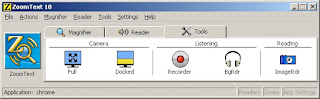
This image shows the Tools page of the main Zoomtext user interface, the camera section of the toolbar has a Full and Docked button.

So, what's the deal here? Well, the basic idea is that if you have a semi-decent USB webcam (or, in my case, a really old poor quality USB webcam) you can drive this camera from inside Zoomtext and treat it like a portable CCTV. No great shakes there you might be thinking, until you recall the sobering fact that most CCTVs have a wince-inducing price tag! So, while you don't get all the bells and whistles of a top-flight CCTV, you do get some basic, functional CCTV ability. Additionally, if you are running on a laptop, you can factor in the portability of the solution too. Not bad, considering you have the Zoomtext software and the webcam already anyway.

Setting Up the Webcam

  1. Plug in your USB webcam, if it isn’t already attached to your PC.
  2. Ensure that your webcam is placed on a stand, or at the very least is suitably supported to enable you to focus appropriately on an example printed page.
  3. Access the Tools menu (ALT T) in the main Zoomtext user interface and choose the Camera... option. 
    This images shows the Camera dialog box, the main settings area for the camera feature.
  4. In the Camera dialog box use the TAB key to move around the options. Notice the Active Camera field - this should contain the name of the camera you are using - although, if you have more than one camera, then you will need to select the correct device here.
  5. Also, notice that you can set the View Mode for the current Camera, choosing between a "Full Screen" or a "Docked Screen" style of view. If you choose the latter then you can Dock the camera view to the top, bottom, left or right hand half of the screen by default.
  6. When you have finished exploring, set the options in the dialog box as required and use TAB to move to the OK button. Use the SPACEBAR to confirm and close the dialog box.

Toggle the Camera On and Off

Now that you have run through the main Camera settings dialog box the final step is to launch the camera. You can do this by either:

  • Opening the Tools menu as before and choosing one of the camera views from the Launch Camera submenu.
  • Activating the Launch Camera button in the Camera… dialog box via the Tools menu.
  • Pressing the keystroke of ALT WINDOWS M, this toggles the camera display on and off.

Now that you can launch the camera function, grab a page of printed text and place it in the range of the webcam.

Using the Webcam to Read Text

Just how much control you can have over your webcam through Zoomtext really depends on the camera hardware itself. For example, the webcam I have is a simple fixed focus affair so I have to manually move it to an optimal distance away from the material I want to read - in my case around 17-18 centimetres away.

If you have a manual focus webcam then you can make focusing adjustments via the Focus option in the Camera toolbar or by using the following keystrokes:

  • Manually Focus In: CONTROL WINDOWS RIGHT ARROW
  • Manually Focus Out: CONTROL WINDOWS LEFT

With some suitable material in place, you can now change a few settings to suit your requirements.

Keyboard Control of the Camera

As you might expect, there's a whole bunch of keystrokes that can be used to switch between the different modes of operation and to alter various settings.

IMage showing the Camera toolbar that appears when you are in a docked view with the camer feature active. This toolbar gives you quick mouse access to options such as colour, docked/full and zooming in and out.

First, you can choose between running in Full Screen Mode (which will also remove the specific Camera Toolbar from the screen) and a half-screen Docked View (where the specific Camera Toolbar is available). You control these display options with the following hotkeys:

  • Toggle Full Screen and Split View: ALT WINDOWS V
  • Cycle through Split View Settings: ALT WINDOWS S

Depending on the material you are trying to read and the position of your webcam, you may also need to rotate the display. This will work whether you are in "full" or "split" screen modes:

  • Rotate camera screen (full and split views): ALT WINDOWS R

On most CCTV systems you have various colour and clarity options that you can choose from to increase contrast levels. The settings here are no different, with a bunch of colour schemes that you can cycle through and choose from. Also, when you have set your preferred colour scheme, you can choose to customise the brightness and contrast levels as required. Doing this gives you complete control over the clarity of the image and can be the difference between reading something comfortably - or not!

  • Toggle the Colour Scheme View On and Off: ALT WINDOWS SPACEBAR
  • Cycle through available Colour Schemes: ALT WINDOWS C
  • Decrease image brightness: ALT WINDOWS UP ARROW
  • Decrease image contrast: ALT CONTROL WINDOWS DOWN ARROW
  • Increase image brightness: ALT WINDOWS DOWN ARROW
  • Increase image contrast: ALT CONTROL WINDOWS UP ARROW
  • Reset to the default clarity settings: ALT WINDOWS B

An Example Scenario

In this example, I want to use my webcam to read some text on a bottle label. I will use the black and yellow colour scheme and manually set the contrast levels to enable an easier read. Let's go:

  1. Connect the USB camera.
  2. Position the camera and the material to be read on a suitable surface - obviously, I will have to move both around in due course.
  3. In Zoomtext, turn the camera mode on with ALT WINDOWS M.
  4. I'm in one of the split views to begin with which is fine, so now I cycle through the colour schemes (ALT WINDOWS C) to get to black and yellow.
  5. At this point I move the bottle a little bit so that it appears sharper. I also increase the contrast with ALT CONTROL WINDOWS UP ARROW.
  6. Now I zoom in slightly to focus more on the text using ALT WINDOWS NUMBERPAD PLUS.
  7. After a few more manual adjustments of moving the bottle (the ambient lighting is not balanced on all sides so I have to move it around) I switch to full camera view (ALT WINDOWS ) and read the text.
  8. With the job done, I set it back to split view (ALT WINDOWS V) and reset my clarity changes back to their defaults with ALT WINDOWS B.
  9. Finally, I turn the colour schemes off with ALT WINDOWS SPACEBAR then turn the camera feature feature off completely with ALT WINDOWS M.

And there you go! A pretty nifty feature - especially if you have a semi-decent webcam kicking around in the back of a drawer in the first place. But, either way, it's definitely worth taking some time out to experiment with it. Until next time, have fun!

Friday, 3 July 2015

Managing Key Labels - JAWS V15

Amending Key Label Settings with JAWS V15

When you start out using a screenreader you tend to hang on every word or every bit of "echo" the software provides. But, over time, you start to focus on the audio cues you actually need. In fact, the mission with your screenreader soon becomes one of paring down all that beginner level verbosity which can, ultimately, get really irritating.

A valuable option in trying to personalise the JAWS echo is to manage the labels spoken for some of the keys on your keyboard. As you know, when you use certain keys on the keyboard, JAWS will indicate the key you have pressed. But what is often under-acknowledged is that you have some control over how JAWS is doing this - in fact, over whether JAWS speaks at all!

To give you an idea of how JAWS can control this type of key label echo, I am going to walk through how to both mute the echo completely and also how to change the label to a text string of your own choosing. (So, if you always wanted to have a TAB KEY echo "Gerald" every time you press it, then read on!)

Toggle Key Label Speech On and Off

  1. With JAWS running, use the keystroke of INSERT F2 to open the Run JAWS Manager list box.
  2. Use the letter S several times to quickly move to the Settings Centre item in the list and use ENTER.
  3. Press CONTROL SHIFT D to open the Default Configuration file in the Settings Centre dialog box.
  4. In the Search field (CONTROL E) type in the word "Manage" then DOWN ARROW to focus on "Manage Key Labels..." Press ENTER.
  5. Focus will now be on "Manage Key Labels..." in the formal tree view of settings, so tap F6 to move and focus on the "Manage Key Labels button..." Use SPACEBAR to activate this.
  6. The Manage Key labels dialog box will now open and your focus will be in a list view, each row containing three columns of information. Use the DOWN ARROW to move through the options and listen to the feedback for each item.
  7. This image shows the Manage Key Labels dialog box in JAWS V15. There are three columns of information: Key Name, Key Label and Mute.
  8. The three columns of information for each item in the list is as follows:
    • Key Name: This is the name of the key on the keyboard.
    • Key Label: This is the text label spoken when the key is used.
    • Mute Status: This piece of information shows whether the label is spoken or not. NOTE: if the text is "Always Speak" then you are unable to mute that key.
  9. With focus in the list, press the letter "T" to move to the "Tab" key entry in the list. Notice that "Tab" is set to "Speak" and the key label is "Tab".
  10. Use the ALT T keystroke to toggle the Mute Status on and off - in this case, set it to "mute".
  11. Use INSERT UP ARROW to conduct a final read across the columns for the Tab key and ensure that the Mute setting is active.
  12. Press the TAB key to move to the OK button and use SPACEBAR to confirm.
  13. Focus will move back to the Manage Key Labels... button so tap the F6 key to return to the tree view, then TAB to the OK button. Use the SPACEBAR to confirm and activate your configuration change.

Now go into a new document (or navigate around something like the CONTROL P Print File Dialog box) in MS Word and test out your new silent TAB key!

Customise Key Label Speech

But what if you want to change the text that is spoken rather than turn the text off completely? In this example I'm going to change the echo speech "Num Lock" into "Number Lock".

  1. Follow the steps as previous to navigate through the Settings Centre, choosing the default file and Manage Key Labels dialog box.
  2. Locate the "Num Lock" item in the list.
  3. This time, use the keystroke of ALT C to activate the Change Label button.
  4. Focus moves to an edit field, replace "Num Lock" with "Number Lock".
  5. Press the TAB key to move to the OK button and use SPACEBAR to confirm.
  6. As before, use the F6 key to move to the tree view then TAB to OK and confirm with SPACEBAR.

Now test out your new key label for Number Lock! I've never been keen on the "num lock" echo which sounds like a wrestling move to me. Anyway, until next time, have fun!

Tuesday, 16 June 2015

Selecting, Copying and Pasting with VoiceOver - iOS

Selecting, Copying and Pasting Text with VoiceOver on iOS

A task that doesn't always feel particularly intuitive at first for newcomers to VoiceOver on iOS is how to work with and manipulate text. Even basic tasks such as copying and pasting can, at first, be a minefield. What can make this even more frustrating is that these "tricky" situations crop up when you least want them to - suddenly, you are faced with figuring out how to include a URL in an email or how to copy that bit of text in a website. And while general navigation with VoiceOver is relatively straightforward (after a bit of "play time" anyway) text manipulation with VoiceOver requires a bit more structure and insight.

In this post I'm going to go through some of the steps that you can take to achieve these tasks. My ultimate aim here is to get you confidently copying and pasting text so we're going to explore every bit of the overall process individually. Let's get started...

Text Fields and Insertion Points

Before you begin copying and pasting text, you need to understand exactly how to approach working in a standard text field and the general approach to selecting specific characters and/or words. First thing, we need to talk about insertion points:

  1. Navigate to the standard Notes app on your iOS device. DOUBLE TAP to launch the app.
  2. In the Notes app, DOUBLE TAP the Compose button and SWIPE RIGHT to the "Note text field, is editing" area.
  3. Type or dictate some basic text into this area.
  4. When you have some text in place, use a SINGLE FINGER DOUBLE TAP - notice that VoiceOver indicates "insertion point at start". Use the same gesture again, to move the insertion point to the end.

Being able to control the insertion point in this way allows you to start your text operations from a more convenient situation. Always bear this positioning ability in mind prior to any text manipulation you need to do. Okay, on to the next step...

Using the Rotor: Characters and Words

The key to having fine control at the text level is all via the rotor. You are going to be accessing it a lot for your text actions so, if you find the rotor gesture difficult or unwieldy to use, keep practicing until it becomes easier.

  1. In your text edit area, move the insertion point to the start of your text, if you are not already there.
  2. Use the rotor gesture to select the Characters option.
  3. With the Characters rotor option set, use a ONE FINGER FLICK DOWN gesture. You should hear VoiceOver move the cursor and echo the next character that takes focus.
  4. After you are comfortable with the ONE FINGER FLICK DOWN gesture, use a ONE FINGER FLICK UP to move backwards through the characters.
  5. Now use the rotor control again and set the Words option.
  6. With the Words rotor option set, use the ONE FINGER FLICK DOWN gesture as before and this time you should hear VoiceOver move the cursor and echo the next word.
  7. When you are happy with moving through the words, use a ONE FINGER FLICK UP gesture to move backwards through the previous words.

Now practice each different mode, switching the rotor control between "Words" and "Characters" as required and using the SINGLE FINGER FLICK UP and DOWN gestures to move focus.

When you have played with these gestures for a while, ensure the rotor control is set to "Characters" in preparation for our next step.

Select Text in a Note

Now that you can move the insertion point to the beginning and end of the current text area and change the rotor between "words" and "characters", it is time to explore selecting:

  1. With your "Characters" rotor option set, use a SINGLE FINGER FLICK DOWN gesture to move through the individual characters in your text. Move to a word that you want to copy and focus the cursor on the first letter.
  2. NOTE: A little technique I use when I SINGLE FINGER FLICK DOWN is to overshoot the first letter of the word I want to copy and then SINGLE FINGER FLICK UP to go one character back. This extra FLICK DOWN and FLICK UP results in the cursor being positioned to the left hand side of the character, a starting point that makes selecting the text feel more intuitive to me. I do this extra flicking to give me the confidence that I definitely have focus on the right letter when I start to highlight.

  3. Now use the REVERSE PINCH gesture to perform the highlighting move from the cursor position. (This REVERSE PINCH gesture can be tricky, imagine stretching an elastic band between two fingers on the screen.) As you drag across the screen, the text will be highlighted and the individual characters will be spoken. (Remember: you are in Characters mode.)
  4. If you over-shoot with your highlighting selection, then use the PINCH gesture to reduce the highlighting from right to left. Again, VoiceOver will comment as you go about this.
  5. Practice both of these PINCH gestures until they become second nature and you can confidently select text. Also, switch to the Words rotor option and test out the PINCH gestures with words.

Copy and Paste into a New Note

Now that you can move the insertion point around, switch between word and character movement and select text, it is time to venture into the Editing options available via the rotor:

  1. With any relevant text highlighted, use the rotor to select the Edit option. Now SINGLE FINGER SWIPE UP or DOWN to confirm the Copy setting. DOUBLE TAP to activate and perform this copy operation, VoiceOver will indicate "(your words here) copied" if you are successful.
  2. With the selection now copied to the clipboard, SWIPE LEFT to reach the Compose button and DOUBLE TAP to create a new note.
  3. SWIPE RIGHT to the text edit area of the new note and access the rotor control area once again. Choose the Edit rotor option as before and this time around SWIPE UP or DOWN to select the Paste option. As before, DOUBLE TAP to confirm and paste the text in at the insertion point.
  4. If necessary, switch the rotor mode back to "Word" or "Characters" and carry on working.

And that's it - copying and pasting VoiceOver and touchscreen style! A bit on the fiddly side I'm sure you will agree but once you get the hang of switching between all the relevant rotor options and the PINCH and REVERSE PINCH gestures, it will start to feel more fluid.

Now that you are getting to grips with this, it's time for a challenge - just how do you go about copying that URL and pasting it into a file or email?

Until next time, keep those rotors spinning...

Friday, 12 June 2015

Sending Tweets with VoiceOver - Twitter - iOS - iPad - iPhone

Tweeting on iOS with VoiceOver

Lately I've been getting more and more requests for coaching in Twitter using iOS and VoiceOver so I'm going to run with a bit of a Twitter theme over the next few posts. Today I'm going to concentrate on the core Twitter activity of sending messages or, to give it its formal name, tweeting!

Those of you who haven't experimented with the official Twitter app (or who haven't yet explored Twitter at all for that matter) might be surprised to know that it's not so bad with VoiceOver on iOS. Personally, I find moving around the app and generally using Twitter with speech to be a lot of fun - well, more fun than moving round the Facebook app anyway which I still find a bit more complex. In my opinion, the Twitter app feels fairly intuitive, consistent and swift.

I've recently started to put some notes together on a few Twitter topics and I have used these notes as the basis for my post here. I'm not worried about the scene-setting in this article I'm only interested here on the main steps to achieve certain Tweeting tasks, so I hope these notes provide some useful reference.

My usual disclaimers apply: you may need to adjust some of the steps for the kit and versions you are using and, while these are the approaches I take - they aren't necessarily the only options nor even the best options for you. Again, as with all guidance, add your own flavours. Finally, all the walkthroughs here assume that you are logged in to the Twitter app and that you have some basic familiarity with the layout and the overall service. Right, enough waffle, let's get on with it!

Create and send a basic tweet.

A message in Twitter is called a "tweet" and consists of no more than 140 characters each.

  1. Navigate to the Compose tweet button in the Twitter app. On the iPad, this is located near the top right of the screen. DOUBLE TAP.
  2. Focus will move to the text field of the new tweet. Input your text as necessary - remember to keep it short and sweet as you only have 140 characters! (You can SWIPE RIGHT a couple of times to the characters remaining information if you need to check.)
  3. When you have finished typing, SWIPE LEFT and focus on the Tweet button. DOUBLE TAP to send the tweet.
  4. Alternatively, if you wish to cancel the message, SWIPE LEFT a couple of times and DOUBLE TAP on the cancel option.

Create and send a tweet containing a mention.

A "mention" is when you quote another handle or Twitter user account in your tweet. Note that this "mention" must occur somewhere other than the very start of your tweet. If you type the username first in your tweet it is formally considered a "reply" and not a "mention".

  1. Follow the steps for a basic tweet.
  2. At the relevant point in your tweet, begin typing the user name (usernames always start with an @ symbol).
  3. As you type, a drop down list will appear and attempt to match the results to the string of text you are typing in. SWIPE RIGHT or FINGER DRAG to move through these results. DOUBLE TAP to confirm your choice.
  4. When you confirm your choice, focus will return to the text input area in your new tweet. Continue typing as necessary, then SWIPE LEFT to the Tweet button and DOUBLE TAP.

Reply to a tweet.

A formal reply is a normal tweet where the username of the account you are replying to is the first thing in the tweet. Twitter includes an option to make this process easy - you don't need to manually do this.

  1. When you have read the tweet you want to reply to, continue to SWIPE RIGHT to focus on the associated Reply button. DOUBLE TAP.
  2. Focus will move to a new tweet edit area, with the @username already supplied at the beginning of the reply.
  3. Type (or dictate) your reply in the normal way then SWIPE LEFT to the tweet button and DOUBLE TAP to send.
  4. Alternatively, you may also be able to reply to a specific tweet via the option in the "magic tap" menu, launched by a TWO FINGER DOUBLE TAP gesture:

  5. Focus on the tweet you want to reply to and use the TWO FINGER DOUBLE TAP (the "magic tap" gesture).
  6. In the magic tap menu that appears, SWIPE RIGHT to the Reply option and DOUBLE TAP to activate it.

Not sure what the "Magic Menu" setting is? Check out my earlier post on the Accessibility Settings in the Twitter App.

Re-tweet a message to my followers (RT).

A re-tweet is when you send a message, originated by another Twitter user, to your own followers. As with a reply, there is a re-tweet option that makes this process much easier to do now.

  1. With focus on the tweet you want to re-tweet to your followers, SWIPE RIGHT until you have focus on the Re-tweet button. DOUBLE TAP.
  2. Focus will move to a small menu containing several options such as: Re-tweet, Quote Tweet and Cancel.
  3. SWIPE RIGHT to the re-tweet option and DOUBLE TAP to confirm.
  4. Alternatively, you can also re-tweet via the "magic tap" menu, launched using the TWO FINGER DOUBLE TAP gesture:

  5. Focus on the tweet you want to re-tweet then use the TWO FINGER DOUBLE TAP gesture to launch the "magic tap" menu.
  6. SWIPE RIGHT to the re-tweet option, then DOUBLE TAP to confirm and "re-tweet" the message.

Create and send a tweet containing a hashtag.

A hashtag is a word or word string, indicated by the use of the "hash" (number) symbol. Using hashtags is a way of tracking and creating conversations across what might be thousands and thousands of individual tweets.

  1. Navigate to the New Tweet button and DOUBLE TAP.
  2. Focus will move to the text field of the new tweet. Type your message as normal.
  3. At the point where you need to type the hashtag, simply start it with the hash (number) symbol, for example: #meandmyguidedog. (Note that hashtags do not contain spaces.)
  4. Continue to type in your text, perhaps including other hashtags, then SWIPE LEFT to the Tweet button and DOUBLE TAP to send.

Mark a tweet as a favourite.

You can bookmark any tweet by marking it as a favourite. You can then open your Favourites page to access your list of favourite tweets.

  1. When you have read the tweet you want to mark as a favourite, SWIPE RIGHT until you have focus on the Favourite button. DOUBLE TAP to confirm.
  2. Alternatively, you can also mark a tweet as a favourite via the "magic tap" menu, launched with a TWO FINGER DOUBLE TAP gesture:

  3. Focus on the tweet you want to mark as a favourite and use the TWO FINGER DOUBLE TAP gesture.
  4. SWIPE RIGHT through the menu options and focus on Favourite. DOUBLE TAP to confirm the action.

Create and send a tweet containing a picture.

  1. Compose your tweet in the normal way.
  2. When you have finished typing your text, SWIPE RIGHT to the photo button. DOUBLE TAP.
  3. A list of thumbnail images will appear at this point from your camera roll, SWIPE RIGHT and/or LEFT through these and DOUBLE TAP the required image.
  4. However, if the image you need is in a specific photo album (and I strongly advise you to take this more organised route) SWIPE LEFT to focus on the Albums button and DOUBLE TAP. SWIPE RIGHT to the specific album you need and DOUBLE TAP to move into it.
  5. Inside the specific photo album, SWIPE RIGHT to move to the image you require. DOUBLE TAP to add the image.
  6. Focus will return to your tweet, SWIPE LEFT or RIGHT to locate the Tweet button and send in the usual way.

Create and send a tweet containing a hyperlink.

While this is a pretty straightforward thing to do on the PC, in iOS it's a bit more of a trickier operation. If you are not yet confident with the VoiceOver rotor control you may want to concentrate on getting used to those gestures first before attempting the following.

  1. First, you need to go and grab the required hyperlink. Open the Safari web browser and navigate to the URL of the page you need to copy. (On my iPad, the address bar area is in the middle, at the top of the screen.
  2. DOUBLE TAP to go into the text edit mode for the address bar. (Importantly, the text will already be highlighted when you move into this text edit mode.)
  3. Access the rotor control and set it to: Edit.
  4. Use a SINGLE FINGER FLICK UP (or DOWN) to move through the edit options, choose "copy" and DOUBLE TAP.
  5. With the URL of the page now copied to the clipboard, close Safari and open Twitter.
  6. Locate and activate the new tweet button as usual.
  7. In the tweet text input area, type your message as required.
  8. At the point where you need to insert the URL from the clipboard, access your rotor again and set it to: Edit.
  9. Use a SINGLE FINGER FLICK UP (or DOWN) to choose "paste" and DOUBLE TAP to confirm. The content of the clipboard will now be pasted into your tweet.
  10. Continue typing as necessary and send the tweet in the usual manner via the Tweet button.

I hope these little walkthroughs help you get to grips with VoiceOver and Twitter? Have fun!

Wednesday, 3 June 2015

Sending Direct Messages - Twitter - VoiceOver - iPad

Sending a Direct Message in Twitter with VoiceOver

If there is one Twitter topic that splits opinion it must be the sending and receiving of direct messages. Some people just loathe them, considering direct messages pretty much out of sync with a social (and very public) technology such as Twitter. Other users, while they don't object to the Direct Message functionality as such, don't use it much if at all anyway.

The love it or hate it perception of the direct message might be a result of the spammers and more aggressive online marketers who have used and abused the function, turning it almost into a kind of Twitter "fishing" tool - especially among new connections. To be sure, the behaviour of continually sending direct messages is a bit of cultural no-no and runs considerable reputational risk.

My own personal feeling about the Direct Message is that it's good to have the option. However, I tend to the view that if, in a future update, this particular functionality is removed entirely it wouldn't really concern me in the slightest. That said, I'm quite sure a lot of non-personal account holders would be concerned and the cynic might say that, as a result of this, the Direct Message is likely to remain part of Twitter life.

What is a Direct Message in Twitter?

In Twitter a Direct Message is a personal private message sent between you and one of your followers. What makes it different from a standard tweet of course is that it is only visible to you and the recipient in private - it won't show up for any other followers. (Ironically, it is this very privacy that turns a lot of people off using the feature.) So, now that we know what it is, let's experiment!

Sending a Direct Message Using VoiceOver

Before the instructions, remember that if you are using a different device - or even different versions of iOS - then you may need to make some allowances as you go through the following steps:

  1. Launch the main Twitter app.
  2. Navigate (using "finger drag" or by swiping) to the Me taband DOUBLE TAP to launch. On my iPad Mini the Me tab is located on the left hand side of the app, about a third of the way down the screen.
  3. Move to the Me heading located at the top, middle of the screen.
  4. From the Me heading SWIPE RIGHT to pass various other options such as Search button, Compose Tweet button and profile photo.
  5. After passing the Settings button and Switch Account button, focus will be on the Direct Messages button. Use the standard DOUBLE TAP gesture to activate this.
  6. When the Direct Message screen launches, focus will be on a Close button, located in the top left of the screen on my iPad. From there, I SWIPE RIGHT and eventually have focus on the New Message button.
  7. A DOUBLE TAP on the New Message button will open the Messages panel and force focus to a text edit field where you can enter the name of the recipient.
  8. All Twitter user names start with an "@" symbol so use the onscreen keyboard to locate this character and start typing the user name. As you type, a drop down list of matches will pop up - giving you the option of finger dragging down to select the required follower name from the list. You will need to DOUBLE TAP to confirm your choice from the list.
  9. After you have confirmed the recipient name, focus will move to the main text edit field, allowing you to input your 140 character long Direct Message. Once more, use the onscreen keyboard to input or use the dictation tool to complete this.
  10. With the message completed, SWIPE RIGHT to the characters left figure and then SWIPE RIGHT again to focus on the Send button. DOUBLE TAP the Send button and your Direct Message will be on its way to the recipient.
  11. When you are done, close the Direct Messages screen by locating the Close button in the top left and DOUBLE TAP. Focus will return to your Me tab.

And that's it for Direct Messages - just be careful on how you use them! Have fun!